Your collection. Your channels.
Browse local files and your Plex, Jellyfin or Emby libraries. YouTube, Netflix and Prime Video sit in the same menus, in the same look.
 Open Setup
SMART TV FOR CRT / VIDEO 1
Films, streams and arcade classics. The familiar glow of a CRT, the unmistakable look of a VCR. This is OSD/OS.
FREE & OPEN SOURCE • RASPBERRY PI · MAC · LINUX
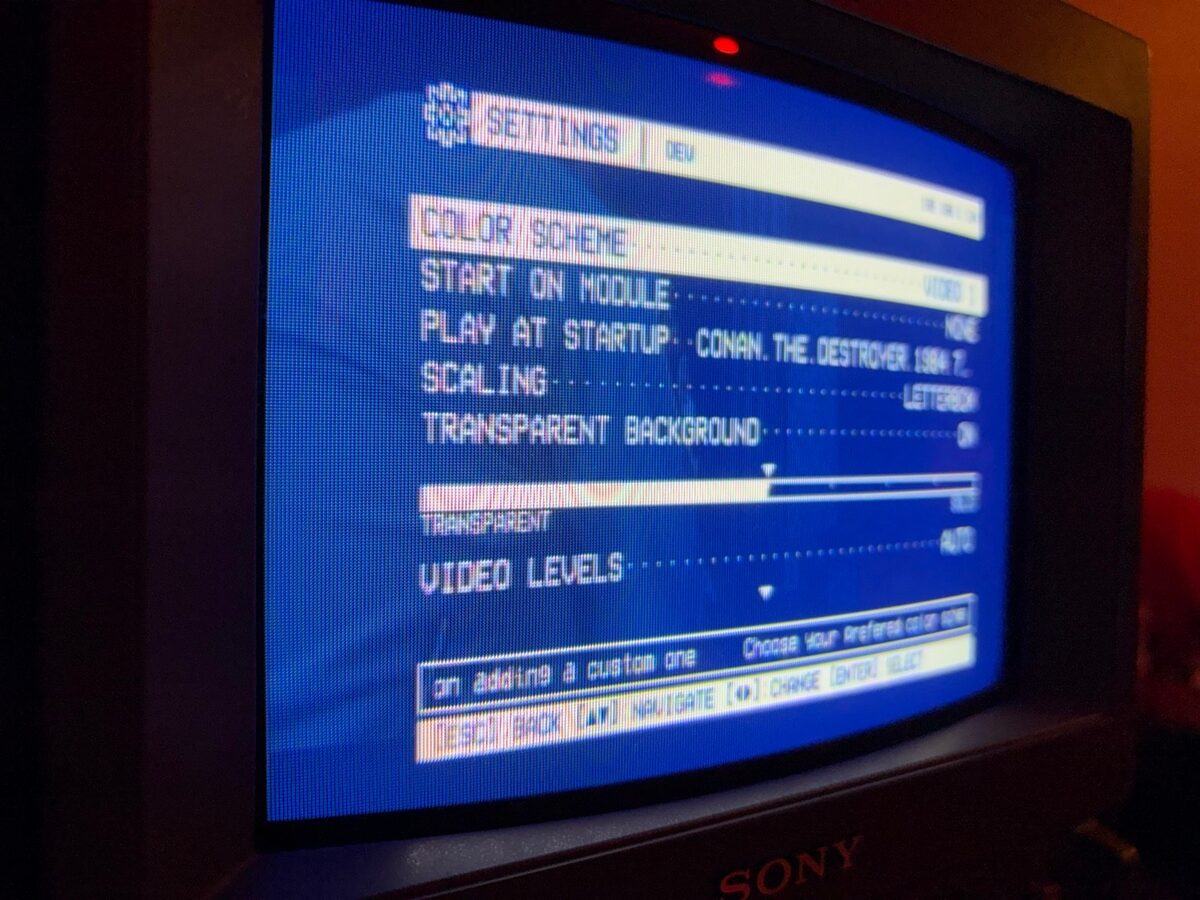
ACTUAL HARDWARE. ACTUAL OSD/OS.
01 / THE EXPERIENCE
Switch it on and go straight to what you love. Big type, simple controls and one consistent way to browse. No desktop in the way.
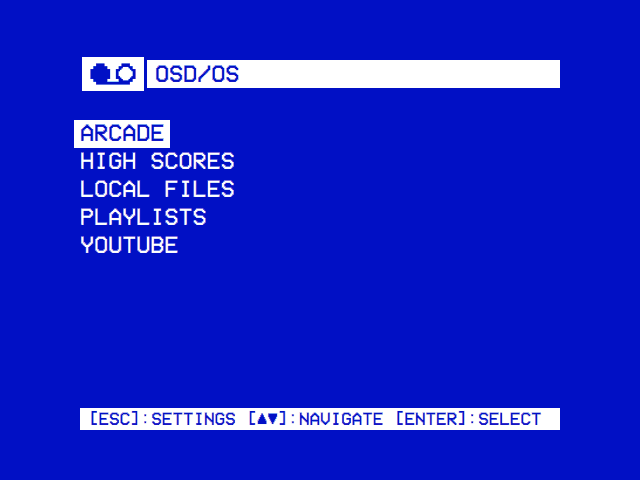
Browse local files and your Plex, Jellyfin or Emby libraries. YouTube, Netflix and Prime Video sit in the same menus, in the same look.
Pick your next arcade game, keep its high scores and play with friends: RetroAchievements and RetroArch netplay for the games that support them.
Large, readable menus in the right proportions for a CRT's pixels. Composite, SCART RGB and JAMMA outputs for the hardware that has them, HDMI for the rest.
02 / MAKE IT YOURS
Keep the original two-colour look, or change the mood with a theme: colours, effects, transitions and menu music, together.
SELECT A LOOK
Build your look in Setup
03 / FIND YOUR CONNECTION
A Raspberry Pi image for a machine of its own. An app for the computer you already have. Choose your starting point.
THE DEDICATED SETUP
Write the OSD/OS image to an SD card and connect the Raspberry Pi to the TV. It boots straight into OSD/OS, ready for a remote, a keyboard or a gamepad.
Read the display guideTHE CABINET SETUP
A Raspberry Pi to JAMMA board puts OSD/OS in a cabinet: browse the games with the cabinet's sticks and buttons, start straight on the Arcade screen, and play on the monitor it came with.
Read the arcade guideTHE APP SETUP
Run OSD/OS as an app on Raspberry Pi OS, on an Apple Silicon Mac, or on SteamOS and other Linux x86_64 systems. Try the interface before building a machine for it.
See the install optionsbrew install mpv on a Mac* Which outputs a Pi has depends on the model and the adapter. Check the display guide before choosing a mode.
04 / PRESS PLAY
Prepare everything on your computer. Then let the little screen take over.
Download the Raspberry Pi image from the latest release and write it to an SD card with Raspberry Pi Imager's "Use custom" option.
Download OSD/OSChoose the hardware, the display, the Wi-Fi and the look in your browser. Download the setup file and copy it to the card's bootfs partition.
Open OSD/OS SetupPut the card in the Pi and power it on. OSD/OS applies your settings as it starts. Add your films and your games, and settle in.
Read the install guideAlready running OSD/OS? Setup also prepares settings for the next start, and reads a card's own settings back.
BEFORE YOU PLUG IN
No. OSD/OS is made for CRTs first, but it draws just as well on an HDMI screen, and it runs as an app on a Mac or a Linux computer.
The image is tried on a Raspberry Pi 4 and a Raspberry Pi 5 (8 GB): the Pi 4 as a TV, the Pi 5 in a JAMMA arcade cabinet, and LAN Play between the two. The outputs differ by model: a Pi 4 has the AV jack and the progressive 240p and 288p SCART modes, a Pi 5 composite from its pads and the interlaced SCART modes, with sound over HDMI or USB. Setup offers each board what it has.
No. RetroAchievements needs a supported game and a matching ROM set, and netplay runs through RetroArch with FinalBurn Neo. Local high-score tables are kept for every MAME game that has one, apart from the online leaderboards.
Each is a module that opens the service's own site in Chromium, with Widevine for the video, so you need a subscription and a device the service allows. The film lists come from TMDB with a free API key of your own. The wiki has the details.
Yes. OSD/OS is free software under the GNU GPL v3, developed by mehmet raif tasdemir (darkBLACK), based on Anthony Caccese's 240-MP. The source, the issues and the wiki are on GitHub.
THE PICTURE IS JUST GETTING STARTED.